
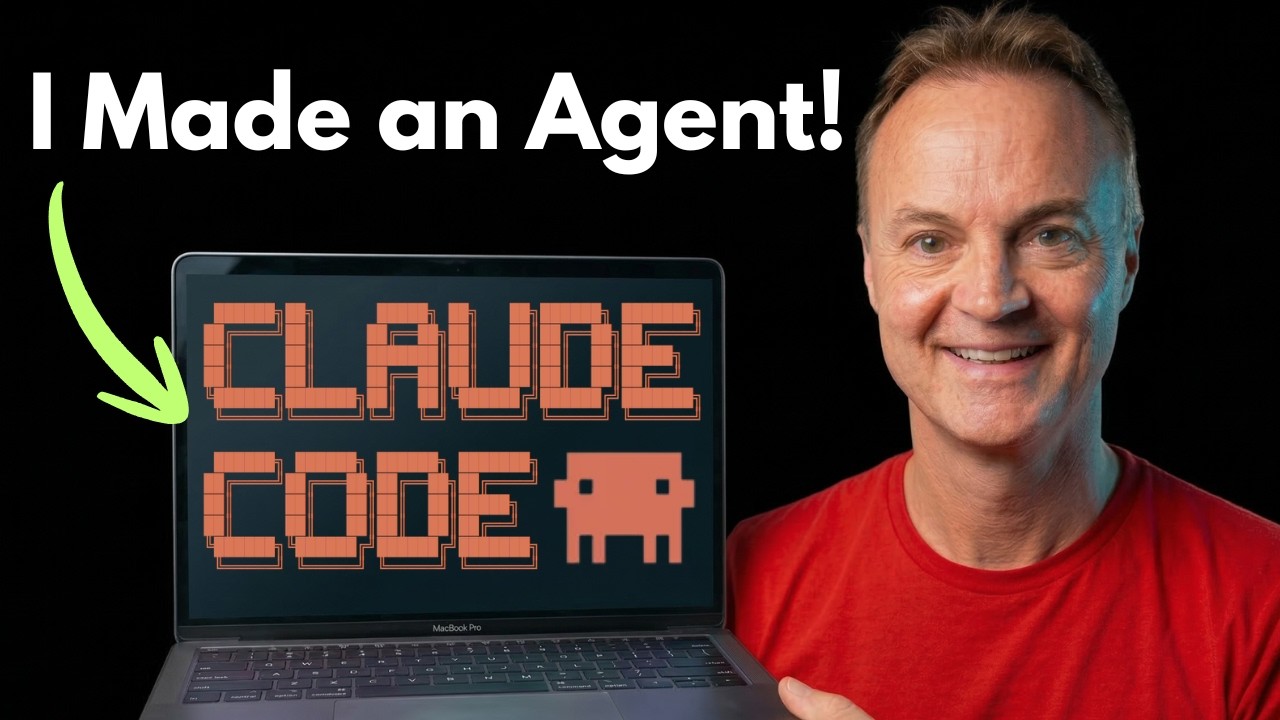
Building Your First AI Agent with Claude Code in VS Code: A Step-by-Step Guide
Artificial Intelligence (AI) continues to revolutionize how we work and create, and one of the most exciting advancements this year is the emergence of agentic workflows. Unlike traditional AI interactions where you give specific instructions, agentic workflows empower AI agents to independently plan, decide, and execute tasks to achieve a goal. In this post, we’ll explore how to build your own AI agent using Claude Code inside Visual Studio Code (VS Code). Whether you’re a tech enthusiast, educator, or productivity guru, this tutorial will show you how to leverage agentic AI to automate complex workflows with ease.
What is an Agentic Workflow?
Before diving into the hands-on part, it's crucial to understand the concept of an agentic workflow. AI interactions can be categorized into three levels:
- Chat – The simplest form where you ask a question and get an answer (e.g., ChatGPT). This is usually a one-off exchange.
- Building – Here, you tell the AI exactly what to build, guiding it step-by-step (e.g., “Make me a bookmark dashboard”). You’re the director; the AI is the builder.
- Agentic – The AI is given a goal and the freedom to figure out the steps to get there. It plans, adapts, asks clarifying questions, and executes the work autonomously.
Agentic workflows are transformative because they mimic trusting an experienced employee rather than micromanaging every step. Instead of you dictating each action, the AI reasons through the process, pivots if challenges arise, and engages you only when uncertain.
Setting Up Your Environment: VS Code with Claude Code
While previous approaches might have involved working in the terminal, using VS Code significantly enhances the experience. VS Code offers:
- A visual file explorer to see files and folders created or modified in real time.
- A dedicated Claude Code panel to interact with your AI agent.
- Easy toggling between planning and editing modes for iterative workflow development.
Getting Started:
- Download and install Visual Studio Code for your operating system.
- In VS Code, go to the Extensions panel and search for Claude Code.
- Install the extension and open it from the sidebar.
- Create a new project folder (e.g.,
My First Agent) and open it in VS Code. - Open a new Claude Code session to start interacting with your agent.
The Power of the CLAUDE.md File: Your Agent’s Onboarding Document
One of the most crucial setup steps is creating a file named CLAUDE.md in your project root. This simple markdown file acts like an onboarding document for your AI agent, providing context and preferences that dramatically improve output quality.
What to include in CLAUDE.md:
- Project Context: What is the workspace for? (e.g., research, content creation)
- About Me: Who you are and your style preferences.
- Rules: Guidelines for the agent’s behavior (e.g., always ask clarifying questions, keep summaries concise).
- Project Structure: Where to save workflows, outputs, and resources.
By setting this file up once, Claude Code automatically reads your preferences every time it starts, saving you from repeating instructions and ensuring consistent results.
Agentic Workflow Architecture: The Three Layers
To effectively use agentic workflows, understand the three foundational layers:
- Workflows: Plain English markdown files that describe a multi-step process (like a recipe). The AI follows and adapts these instructions.
- Agent: Claude Code itself — it reads workflows, reasons through steps, and makes decisions dynamically.
- Tools: The capabilities the agent can use — reading/writing files, running terminal commands, and searching the web (built-in). You can also connect external services like Gmail or Notion later.
The secret to success lies in writing good workflows. A well-crafted workflow with basic tools outperforms complicated prompts or fancy plugins.
Building Your First Agent: Using Planning Mode
Instead of jumping straight to execution, use planning mode (toggle with Shift + Tab twice) to let Claude Code think through the workflow before making any changes.
Example Goal:
"Build a workflow where I provide a topic. The agent will research it thoroughly, organize findings, and produce a structured report. Before starting, it should ask clarifying questions about scope, audience, and details."
Claude Code will autonomously break down this goal into phases like clarifying questions, research, synthesis, and report generation. You can then refine the plan by adding requests, such as including a "Key Takeaways" section.
Once satisfied, switch back to execution mode and let the agent build the workflow — creating files, folders, and content as planned.
Running a Live Research Workflow: A Demonstration
To see your agent in action, provide a research prompt such as:
"Research the current state of AI agents in 2026, including usage trends, what's effective, what's overhyped, and future directions."
The agent will:
- Ask clarifying questions about audience, depth, and format.
- Search the web using built-in capabilities.
- Organize and synthesize the information into a markdown report.
- Save the report in the designated output folder.
You can view the report directly in VS Code and preview it formatted with a keyboard shortcut (Ctrl+Shift+V).
Iterating and Refining: The Agent Remembers and Improves
One of the powerful features of agentic workflows is iteration. You can ask the agent to make targeted edits without starting over, such as:
- Trimming the executive summary to three bullet points.
- Adding a comparison table of top AI tools mentioned in the report.
Because the agent keeps context and remembers previous work, it updates files intelligently, saving time and effort.
Five Common Mistakes to Avoid + Pro Tips
- Skipping CLAUDE.md: This file is essential. Spend 2 minutes setting it up to save hours later.
- Being Too Vague: Specific prompts yield better results. Include details like audience, date range, and format.
- Not Using Planning Mode: Always plan before building to avoid wasted effort.
- Forgetting to Ask Clarifying Questions: Build this step into your workflows to avoid assumptions.
- Trying to Automate Everything at Once: Start small with one workflow, refine it, then expand.
Additional Tips:
- Organize workflows in a dedicated folder.
- Monitor the agent’s to-do list and reasoning to catch errors early.
- Give precise feedback for corrections instead of restarting.
- Save your best workflow and CLAUDE.md files as templates.
- Use the rollback feature to undo unwanted changes.
- Adjust the agent’s effort level (
low,medium,high) depending on task complexity.
Final Thoughts and Your Weekly Challenge
Building an AI agent that independently reasons and executes tasks is a significant leap beyond simple chat or direct building. It opens doors to automating research, content creation, analysis, and much more with minimal manual guidance.
Challenge for You:
Create one agentic workflow this week for a task you do regularly. It could be research, organizing files, drafting emails, or anything else. Don’t worry about perfection—get it running, see the results, and iterate.
Feel free to share your experiences or ask questions in the comments. I’m excited to see what you create with the power of agentic AI workflows.
Thanks for reading! Stay tuned for more tutorials and tips on harnessing AI to boost your productivity and creativity.
— Jamie, Teachers Tech