
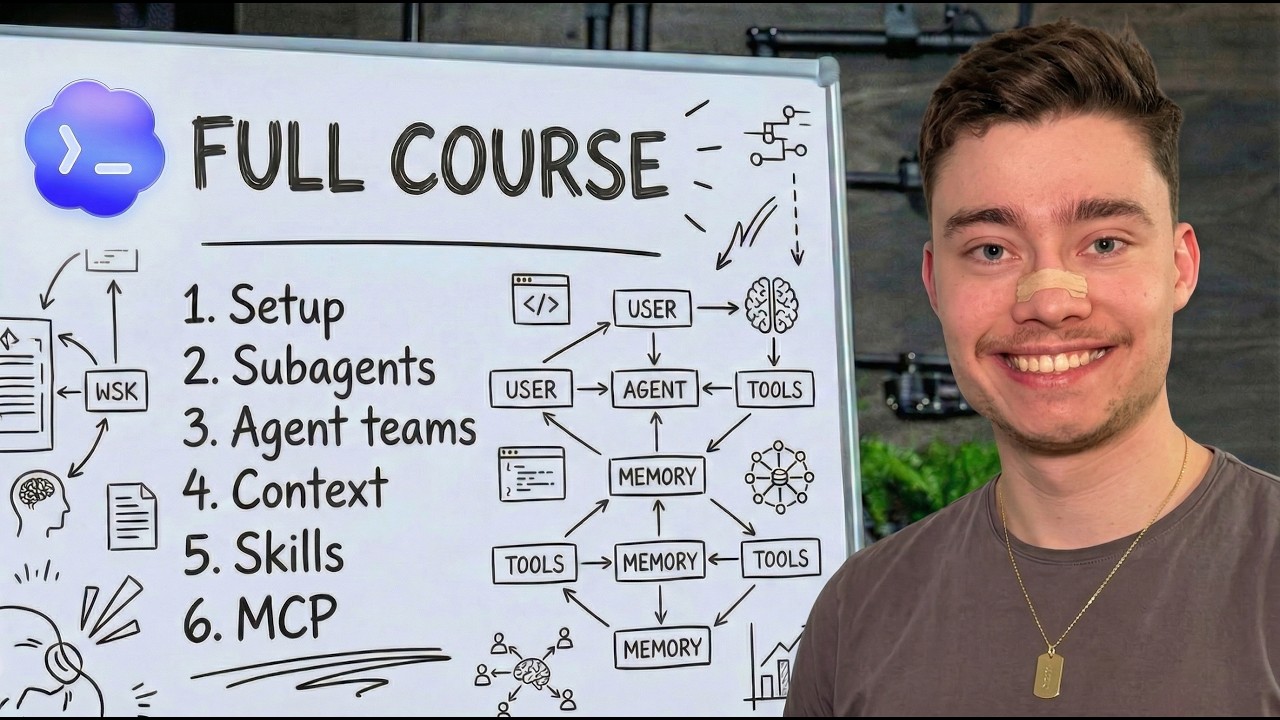
The Ultimate Beginner’s Guide to Using Codex for AI-Powered Coding in 2026
Welcome to the definitive guide on using Codex, the powerful AI coding assistant that is revolutionizing software development. Whether you’re a complete beginner or someone looking to boost productivity, this blog post will walk you through everything you need to know to start building and deploying applications with Codex — no coding experience needed.
About the Author
Hi, I’m David Andre. I’ve spent over a thousand hours coding with AI and used Codex extensively to build my AI startup, Vectal, which was acquired for seven figures. I’ve helped hundreds of thousands of people learn Codex on YouTube and now I’m here to help you master it too.
What is Codex?
Codex is an advanced AI coding assistant developed by OpenAI designed to help you build, debug, and deploy software applications simply by speaking in plain English. Unlike traditional coding tools, Codex can handle complex application development, solve deep errors, and run long coding sessions with minimal mistakes.
Why Use Codex?
- No coding experience required: Codex can translate your ideas into working code.
- Build and deploy fast: Turn any idea into a fully deployed app on the internet in less than an hour.
- Boost productivity: Codex helps not only with coding but also with writing, marketing, decision-making, and more.
- Save money and customize: Build software tailored to your needs instead of relying on expensive, generic third-party software.
How To Get Started with Codex
Step 1: Install Codex CLI
The simplest way to start is using the Codex Command Line Interface (CLI), which runs on any computer regardless of specs.
- Open your terminal (on Mac, type “Terminal” in Spotlight; on Windows, press
Win + Rand typecmd). - Paste the one-line install command from OpenAI’s official documentation (linked below).
- Launch Codex by typing
cexin your terminal. - Update to the latest version if prompted.
- Login using your ChatGPT subscription or API key.
Tip: If the install fails, make sure Node.js is installed by running node -v in your terminal.
Step 2: Set Up Your Project Folder
- Always create a dedicated folder for each project.
- Use terminal commands
ls(list files) andcd(change directory) to navigate. - Launch Codex inside your project folder to keep it scoped to your files.
Step 3: Create an agents.md File
This markdown file acts like a "system prompt" for Codex, guiding how it interacts with your project.
- I provide a free preset
agents.mdfile (linked below) that you can copy and customize. - Paste it into your project wrapped in XML tags (
<text> ... </text>) for better context parsing by Codex.
Building Your First App with Codex
I recommend targeting projects with high demand and simple architectures but strong user appeal — like apps for women’s lifestyle or beauty, which have proven to be lucrative markets.
Example Project: Beauty Mirror App
- Upload an image of yourself.
- Apply different AI-generated facial changes such as smaller nose, lip filler, Botox, skin tone adjustments, etc.
- Display results in a Pinterest-style gallery.
This project leverages AI image editing models such as Nano Banana 2 from OpenRouter API for fast, realistic edits.
Working with Codex in an IDE
While you can run Codex entirely in the terminal, using an Integrated Development Environment (IDE) like Visual Studio Code (VS Code) or Cursor greatly enhances your workflow.
- IDEs provide file explorers, code editors, terminals, and Git integration all in one place.
- Cursor is my favorite AI-powered IDE fork of VS Code with built-in Codex integration.
- You can launch Codex inside the IDE’s integrated terminal, making management seamless.
- Use the Codex extension in VS Code or Cursor for a user-friendly interface instead of CLI.
Advanced Codex Features and Tips
Models & Reasoning Effort
- Always use the latest Codex model (e.g., GPT 5.4 currently).
- Set reasoning effort to medium or high for best balance of speed and accuracy.
- Use “extra high” for complex bug fixes or large refactors.
Image Input
- Attach screenshots or images directly into Codex prompts for visual context.
- Use
Ctrl+Vto paste images in the terminal (not Command+V on Mac). - This is extremely useful for UI layouts, error screenshots, or design inspiration.
Web Search & Research
- Codex can perform web searches to fetch up-to-date information.
- Use this to gather competitor insights, marketing data, or latest documentation.
- For deeper research, use specialized tools like Perplexity AI alongside Codex.
Session Management
- Use
/resumeto continue previous conversations. - Start fresh with
/newor/clearcommands. - This helps manage context and keeps the AI focused.
Fast Mode
- Toggle
/fastto double Codex’s response speed. - Useful if you have a high-tier subscription and want faster iteration.
Debugging and Improving Your App
- Use Git for version control; Codex can help you stage, commit, and manage versions.
- Commit often (every 10-15 minutes) to avoid losing work.
- If errors occur, paste error messages or screenshots to Codex for analysis and fixes.
- Create a
/docsfolder for storing research and documentation your AI gathers.
Deploying Your App
- Push your project to GitHub (private or public).
- Use deployment platforms like Vercel, Netlify, or Render.
- Codex can guide you through deployment steps based on your tech stack.
- Once deployed, your app is accessible online with a custom URL.
Codex Sandbox and Permissions
Codex operates in different sandbox modes controlling its access to your system:
- Workspace write (default): Can only write inside your project folder.
- Read only: Can read files but not write.
- Dangerous full access (YOLO mode): Full system access without asking for permission.
Industry secret: Most advanced users run Codex in YOLO mode (d-yolo command) for maximum autonomy and speed, but use Git to safeguard against mistakes.
The Codex App — The Future of AI Coding
OpenAI has released a dedicated Codex app for Mac and Windows that offers:
- Multiple parallel AI agents.
- Git worktrees for managing features without conflicts.
- Built-in skills (image generation, GitHub integration, testing tools).
- Automations and scheduled tasks.
- User-friendly UI beyond CLI and IDE extensions.
This app is shaping the future of multi-agent AI coding workflows.
Final Thoughts and Resources
If you want to truly master AI coding and learn step-by-step how to build and deploy apps with Codex and other AI tools, consider joining my New Society community. It’s a comprehensive 3-week course designed for beginners to go from zero to AI coding mastery.
- Learn deployment, Git, prompt engineering, and advanced AI coding.
- Access presets, templates, and personal guidance.
- Build real projects ready for the web.
Useful Links
- OpenAI Codex CLI Installation Guide
- Node.js Download
- Agent.md Preset (GitHub Gist)
- Cursor IDE
- OpenRouter API
- GitHub
- Vercel Deployment
- New Society AI Coding Course (Link to be provided)
Start Building Today!
With Codex, the barrier to building powerful software is gone. Whether you want to automate your business, create unique apps, or learn programming the AI-assisted way, Codex is your ultimate partner.
Don’t wait — start by installing Codex CLI or using the Codex app, set up your project, and watch your ideas come to life with AI in 2026.
Happy coding! 🚀
If you found this guide helpful, share it with friends and follow for more AI coding tutorials.